Documentation Index
Fetch the complete documentation index at: https://oxy.tech/docs/llms.txt
Use this file to discover all available pages before exploring further.
Now that you have an agent working, you need to write tests to ensure that the
quality of your answers don’t degrade as you add additional context.
To add a test to your agent, you can add the following to your .agent.yml file.
tests:
  - type: consistency
    n: 10
    task_description: "how many nights did I get high quality sleep?"
tests:
  - type: consistency
    n: 10
    task_description: "how many nights did I get high quality sleep?"
  - type: consistency
    n: 10
    task_description: "how many hours do I sleep on average?"
  - type: consistency
    n: 10
    task_description: "what day do I typically get the most sleep?"
oxy test my-agent.agent.yml
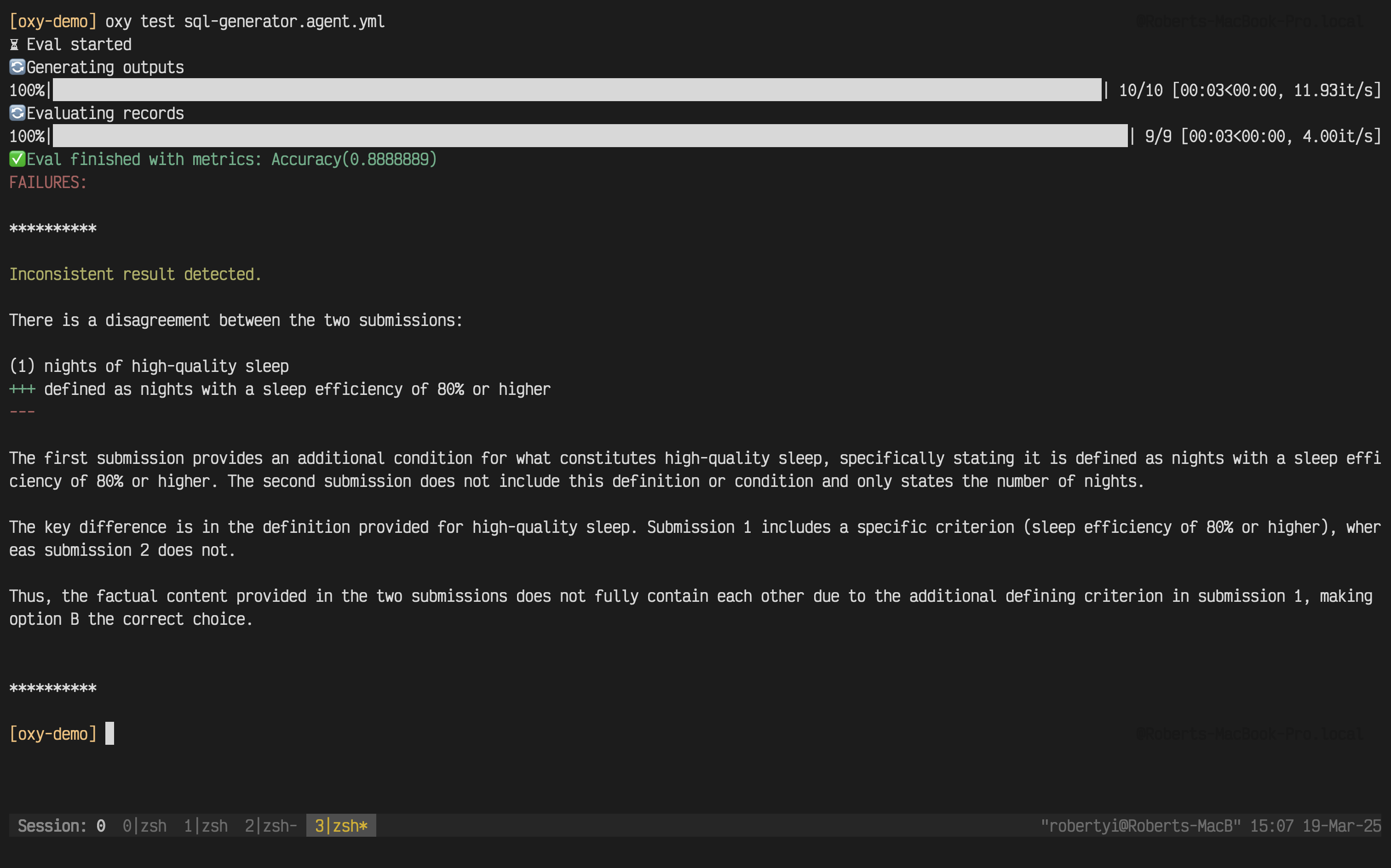
Understanding Consistency Tests
Since Oxy is built for data analysis, consistency tests are optimized for numerical data and analytical insights. The evaluator intelligently handles common data analysis scenarios:
What Gets Ignored (Not Considered Errors)
Numerical Rounding (< 0.1% difference):
$1,081,396 vs $1,081,395.67 ✅ Consistent$1,065,619 vs $1,065,618.90 ✅ Consistent- Different database precision settings
- Rounding from visualization tools
Grammar & Style Variations:
"Revenue amounts to $1M" vs "Revenue amount to $1M" ✅ Consistent- Different phrasing of the same insight
- Synonym usage in descriptions
Formatting Differences:
- Date formats, number formatting, whitespace
What Actually Fails Tests
Material disagreements like:
$500,000 vs $450,000 ❌ (10% difference)"Sales increased" vs "Sales decreased" ❌ (contradictory)- Different conclusions or incompatible recommendations
This approach ensures your tests focus on factual correctness while being practical about data analysis realities.
See the default logic: The built-in consistency evaluator uses a detailed
prompt optimized for data analysis. You can view the full default
prompt
to understand exactly how it evaluates consistency. Customizing Evaluation Logic
For specific use cases, you can customize how consistency is evaluated by providing a custom prompt:
tests:
  # Default behavior - uses built-in smart evaluator
  - type: consistency
    n: 10
    task_description: "How many hours do I sleep on average?"

  # Financial data - strict exact matching
  - type: consistency
    n: 10
    task_description: "What is our Q4 revenue?"
    prompt: |
      Financial data requires exact precision.
      Task: {{ task_description }}
      Submission 1: {{ submission_1 }}
      Submission 2: {{ submission_2 }}

      CONSISTENT (A) only if numbers match exactly.
      Answer A or B.

  # Trend analysis - focus on direction, not exact numbers
  - type: consistency
    n: 10
    task_description: "What's the sleep quality trend?"
    prompt: |
      Evaluate if these describe the same overall trend.
      Ignore exact percentages, focus on direction.

      Task: {{ task_description }}
      Submission 1: {{ submission_1 }}
      Submission 2: {{ submission_2 }}

      Answer A (same trend) or B (different trends).
- Default prompt (recommended): General data analysis, handles rounding intelligently
- Strict custom prompt: Financial calculations, compliance reports requiring exact values
- Lenient custom prompt: Trend analysis, qualitative insights, high-level summaries
- Modified default: Start with the default prompt source and adapt it for your domain
Example: Adapting the default prompt
You can copy the default CONSISTENCY_PROMPT and modify specific rules:
tests:
  - type: consistency
    n: 10
    task_description: "Calculate inventory costs"
    # Custom prompt based on default but with stricter rounding rules
    prompt: |
      You are evaluating if two submissions are FACTUALLY CONSISTENT for inventory analysis.

      **MANDATORY OVERRIDE RULES - READ THIS FIRST:**

      If you see ANY of these, you MUST answer A immediately:
      ✓ Rounding difference < $0.10 (stricter than default $1) → IMMEDIATELY Answer: A
      ✓ One submission includes additional details the other lacks → IMMEDIATELY Answer: A
      ✓ Grammar/style/formatting differences only → IMMEDIATELY Answer: A

      [BEGIN DATA]
      ************
      [Question]: {{ task_description }}
      ************
      [Submission 1]: {{ submission_1 }}
      ************
      [Submission 2]: {{ submission_2 }}
      ************
      [END DATA]

      ## EVALUATION RULES

      ### ALWAYS CONSISTENT (Answer: A)

      1. **Rounding differences < $0.10** (stricter for inventory)
         * Any difference under 10 cents → A

      2. **Additional Details**
         * One submission has more context → A
         * "Doesn't mention X" is NOT the same as "Contradicts X"

      ### ONLY INCONSISTENT (Answer: B) when:
      * Different item counts or SKUs
      * Material numerical difference (> $1)
      * Contradictory inventory status

      Now evaluate. Answer A (consistent) or B (inconsistent).

      Reasoning:
Advanced Testing Options
CI/CD Integration
For automated testing in CI/CD pipelines, use the JSON output format:
oxy test my-agent.agent.yml --format json
{"accuracy": 0.855} that can be parsed by your CI tools.
Quality Gates
Enforce minimum accuracy thresholds to prevent regressions:
# Fail the build if accuracy drops below 80%
oxy test my-agent.agent.yml --format json --min-accuracy 0.8
Multiple Test Management
If you have multiple tests in your agent file, control how thresholds are evaluated:
# Average mode: average of all tests must meet threshold (default)
oxy test my-agent.agent.yml --min-accuracy 0.8 --threshold-mode average

# All mode: every individual test must meet threshold
oxy test my-agent.agent.yml --min-accuracy 0.8 --threshold-mode all

